7en.ai

Navigation

Getting Started

IntroductionQuick Start Guide

BUILD AGENT

Basic SettingsModel SettingsAppearanceGuidelinesEscalationChat Integration

Agent Training

Using DocumentsUsing Google DriveUsing Plain TextUsing URLs

Manage Knowledge

Knowledge FolderManage Sources

integrations

FreshdeskSlackZapierZendeskZoho

Getting Started

IntroductionQuick Start Guide

BUILD AGENT

Basic SettingsModel SettingsAppearanceGuidelinesEscalationChat Integration

Agent Training

Using DocumentsUsing Google DriveUsing Plain TextUsing URLs

Manage Knowledge

Knowledge FolderManage Sources

integrations

FreshdeskSlackZapierZendeskZoho

Training agent using Google Drive

Interactive demo showing agent training using Google Drive files

The "Integrations" tab streamlines data ingestion by connecting directly to your cloud storage, eliminating the need to download files locally before uploading them to the chatbot.

You must connect your Google drive first. How to connect?

Input Configuration

Source Name
Assign a unique name to this file so you can easily identify it in your knowledge base later.

Source
Choose "Integrations" option from the available source options in the tab menu.

Choose Provider
Click the Google Drive card to initiate the connection. This authorizes the agent to access your cloud documents for training purposes.

File Selection

File Selection Interface Once connected, your Google Drive files appear in a browseable list below the integration card. You can select specific documents to import without leaving the dashboard:
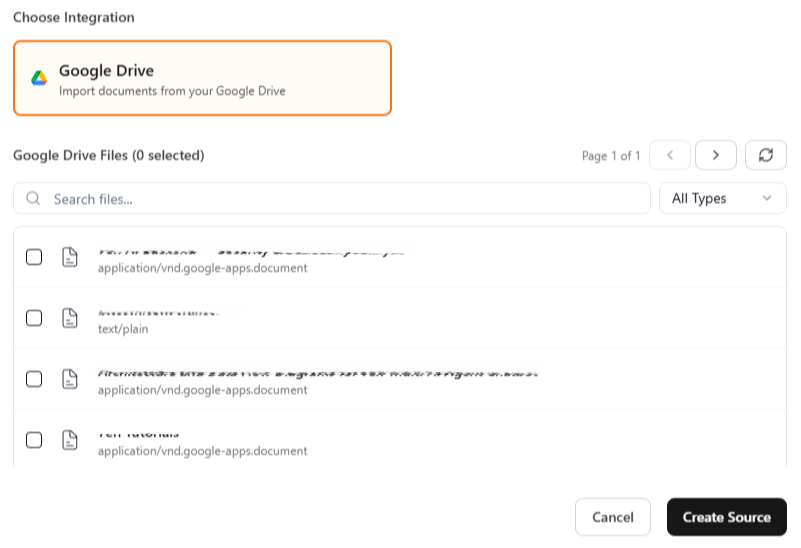
  • Search & Filter: Use the Search files... bar to find documents by name, or use the All Types dropdown to filter by file format (e.g., Google Docs, PDFs, or Text files).
  • Select Files: Check the box next to each file you wish to include in the knowledge base. The list displays the file name (e.g., test-file.txt) and its type for easy identification.
  • Navigation: If you have many files, use the pagination arrows (< >) or the refresh button to fetch your new uploads.
Google Drive Files

Train the agent

Once you have completed the steps mentioned above, click the Create Source button at the bottom right of the modal to save the entry.

Important: Simply creating a source does not immediately train the agent. After adding all your desired sources (websites, documents, or text), you must click the Train Agent button on the builder page. This triggers the system to process the new data and apply it to your agent's active knowledge base.

Ready to transform your business?

Start building intelligent AI agents to engage with customers.

← Using Documents
Using Plain Text →

On this page

  • Training agent using Google Drive
  • Input Configuration
  • File Selection
  • Train the agent