7en.ai

Navigation

Getting Started

IntroductionQuick Start Guide

BUILD AGENT

Basic SettingsModel SettingsAppearanceGuidelinesEscalationChat Integration

Agent Training

Using DocumentsUsing Google DriveUsing Plain TextUsing URLs

Manage Knowledge

Knowledge FolderManage Sources

integrations

FreshdeskSlackZapierZendeskZoho

Getting Started

IntroductionQuick Start Guide

BUILD AGENT

Basic SettingsModel SettingsAppearanceGuidelinesEscalationChat Integration

Agent Training

Using DocumentsUsing Google DriveUsing Plain TextUsing URLs

Manage Knowledge

Knowledge FolderManage Sources

integrations

FreshdeskSlackZapierZendeskZoho
Home / Docs / Integrations / Zendesk
7en ai x Zendesk

Introduction to Zendesk Integration

Seamlessly connect Zendesk with 7en.ai to empower your AI agents to manage customer support tickets, streamline query resolution, and enhance user satisfaction. This guide provides a clear, step-by-step process to integrate Zendesk with 7en.ai, enabling automated ticketing and real-time support workflows.

Before You Start

Ensure you have active 7en.ai and Zendesk accounts with administrative access. You’ll need your 7en.ai API token from Settings > API Keys in the 7en.ai dashboard.

Why Integrate Zendesk?

Integrating Zendesk with 7en.ai unlocks powerful automation for your support operations:

  • Automated Ticketing: Create and manage Zendesk tickets directly from your AI agent’s interactions.
  • Unified Support: Centralize customer queries within 7en.ai’s conversation interface.
  • Enhanced Efficiency: Reduce manual work by syncing agent responses with Zendesk’s ticketing system.

This connection transforms your AI agents into a robust extension of your customer support team.

Step-by-Step Connection Guide

Follow these steps to connect Zendesk to 7en.ai, with visual aids to ensure a smooth setup process.
Step 1: Access Integrations in 7en.ai

  1. Log in to your 7en.ai account.
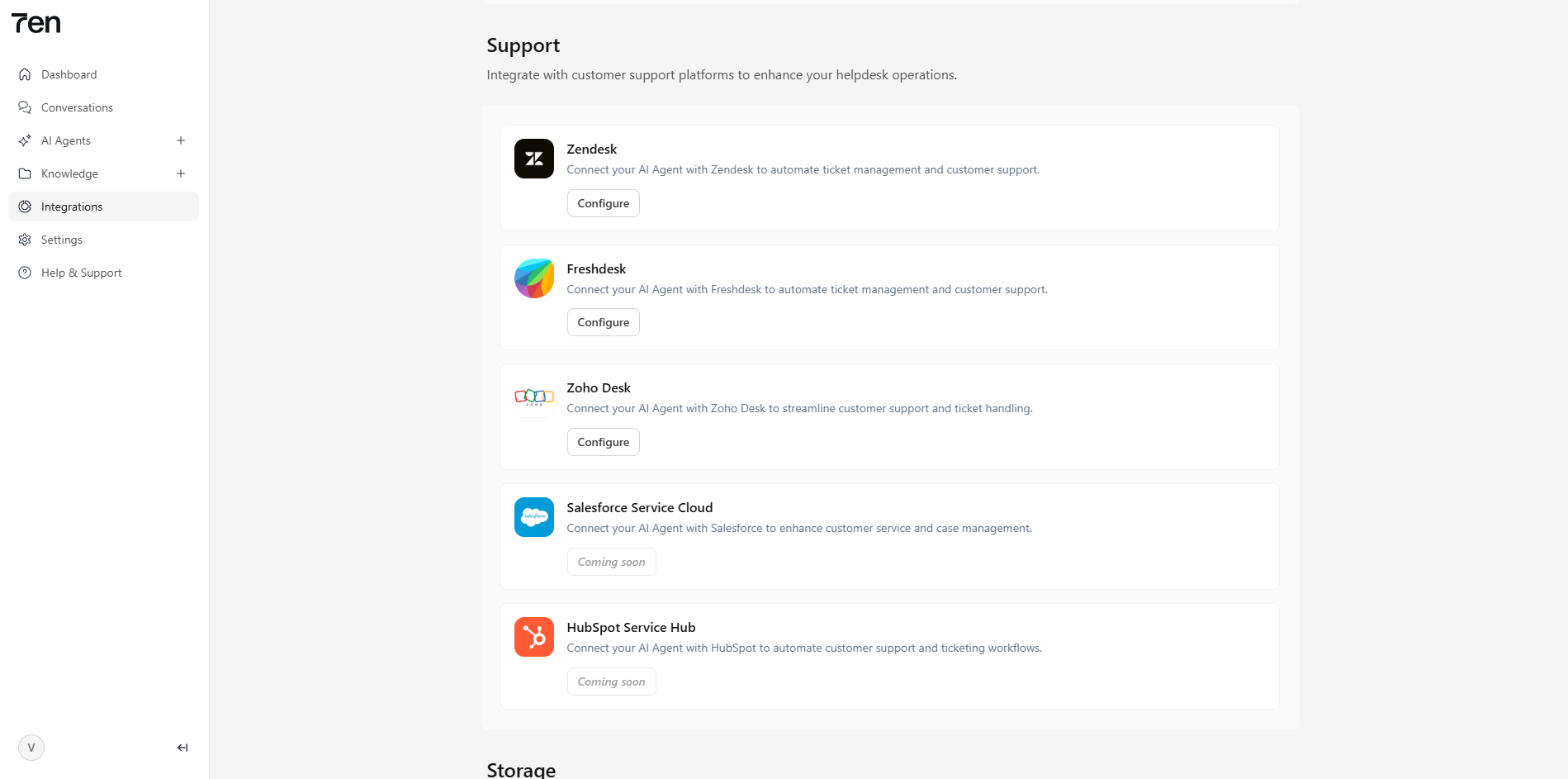
  2. Navigate to the Integrations page at https://staging.7en.ai/integrations.
  3. In the Support section, locate Zendesk and click Configure Integration.
Screenshot of 7en.ai Integrations page with Zendesk option
Selecting Zendesk integration in 7en.ai

Step 2: Generate Zendesk API Token

  1. Open a new browser tab and log in to your Zendesk account.
  2. Click the Settings icon (gear) in the sidebar.
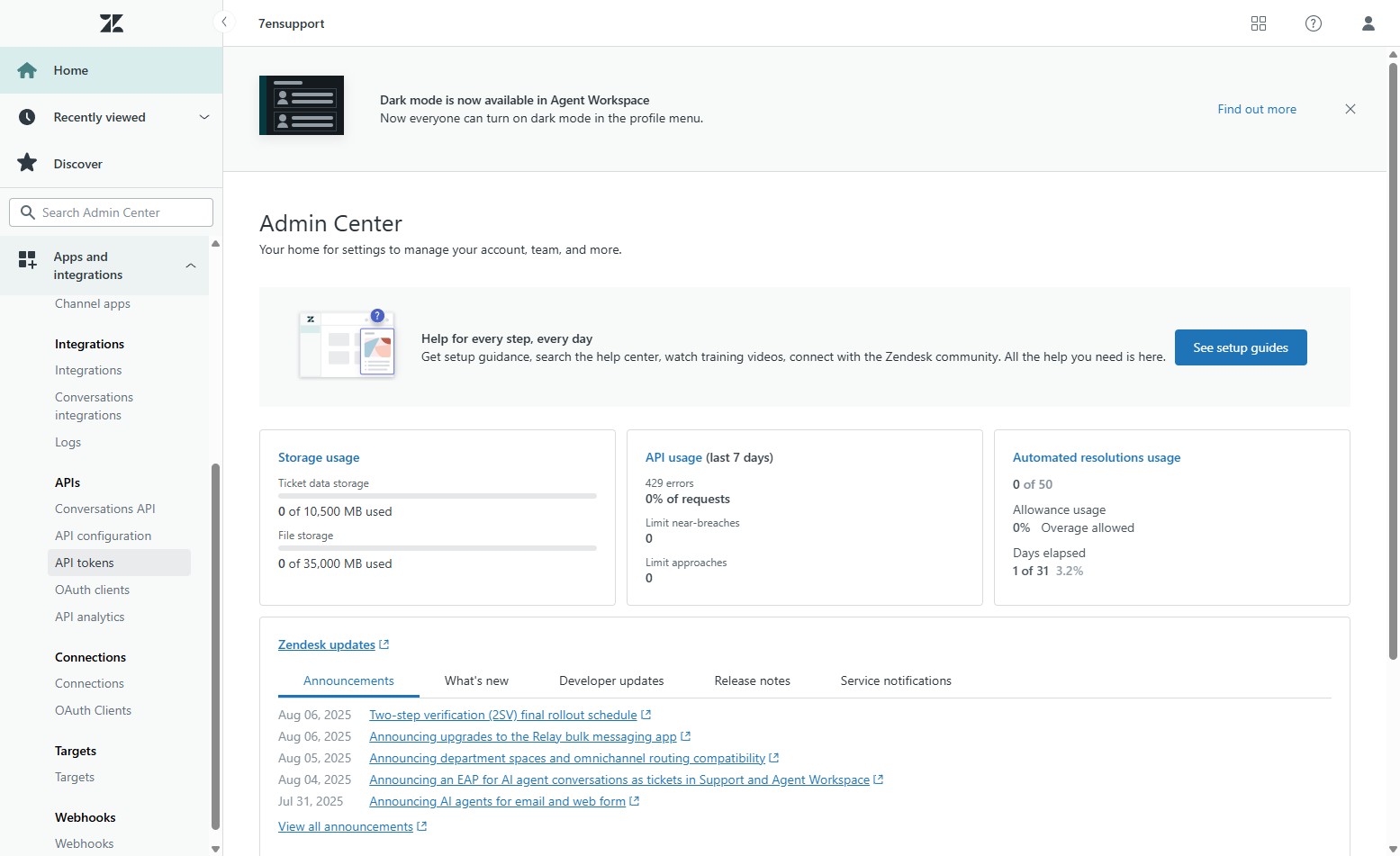
  3. Select Apps and Integrations > API Tokens.
  4. Click Add API Token.
  5. Enter a description for the token (e.g., "7en.ai Integration").
  6. Click Save and then Copy to copy the generated API token.
Screenshot of Zendesk API Tokens page with token creation
Creating and copying the Zendesk API token

Step 3: Input API Token in 7en.ai

  1. Return to the 7en.ai tab.
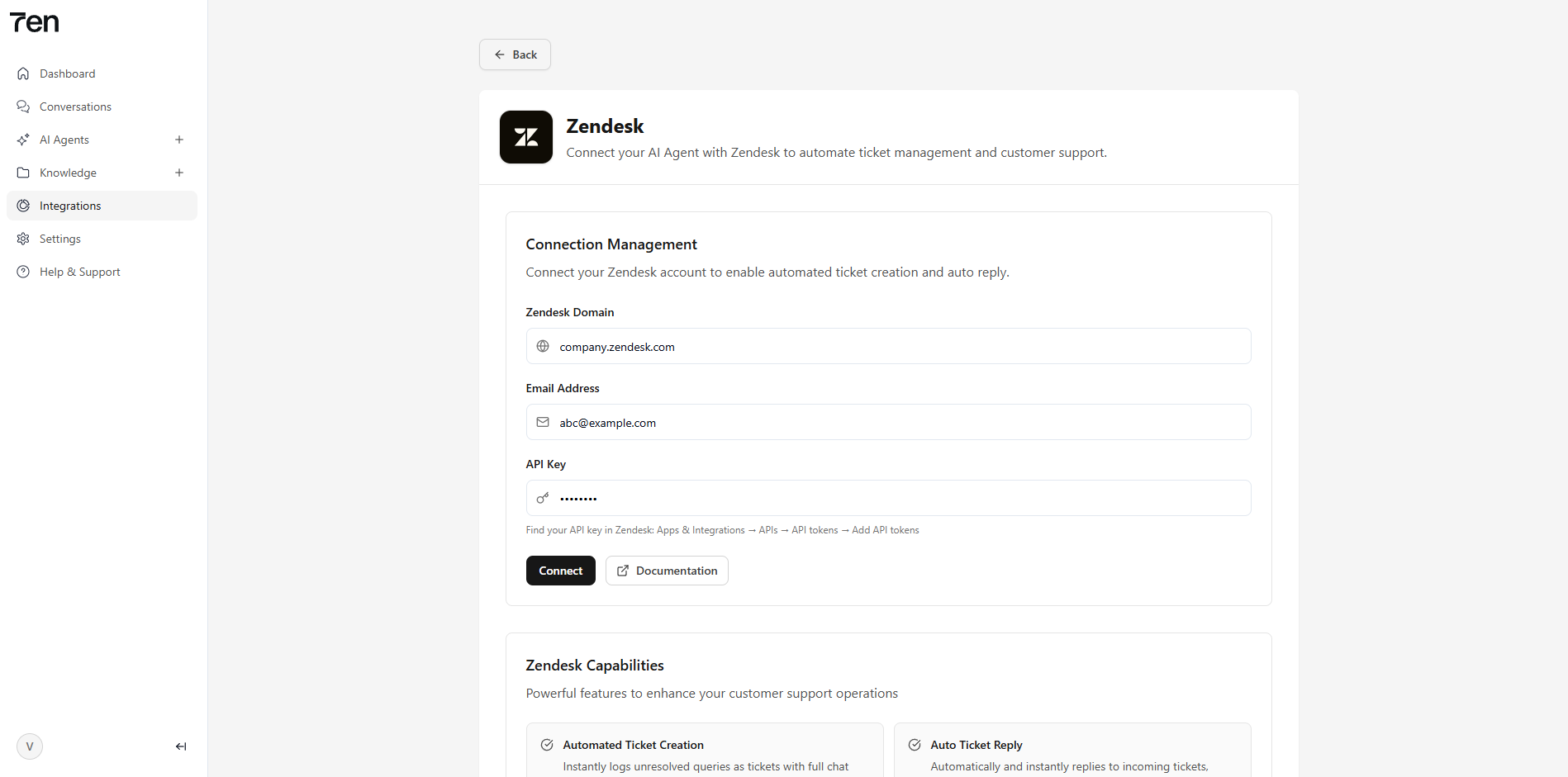
  2. Paste the copied Zendesk API token into the API Key field on the Zendesk integration page.
Screenshot of 7en.ai Zendesk integration page with API key field
Pasting the Zendesk API token in 7en.ai

Step 4: Retrieve Zendesk Email

  1. Switch back to the Zendesk tab.
  2. Click your Profile icon and select View Profile.
  3. Copy your primary email address from the profile page.
Screenshot of Zendesk profile page with email address
Copying the primary email from Zendesk

Step 5: Enter Email in 7en.ai

  1. Return to the 7en.ai tab.
  2. Paste the copied email address into the Email Address field on the Zendesk integration page.
Screenshot of 7en.ai Zendesk integration page with email field
Entering the Zendesk email in 7en.ai

Step 6: Retrieve and Enter Zendesk Domain

  1. Switch to the Zendesk Admin Center tab.
  2. Copy your Zendesk domain (e.g., yourcompany.zendesk.com) from the browser’s address bar or account settings.
  3. Return to the 7en.ai tab.
  4. Paste the domain into the Zendesk Domain field.
Screenshot of copying Zendesk domain and pasting in 7en.ai
Entering the Zendesk domain in 7en.ai

Step 7: Finalize the Connection

  1. Click Connect Zendesk to complete the integration.
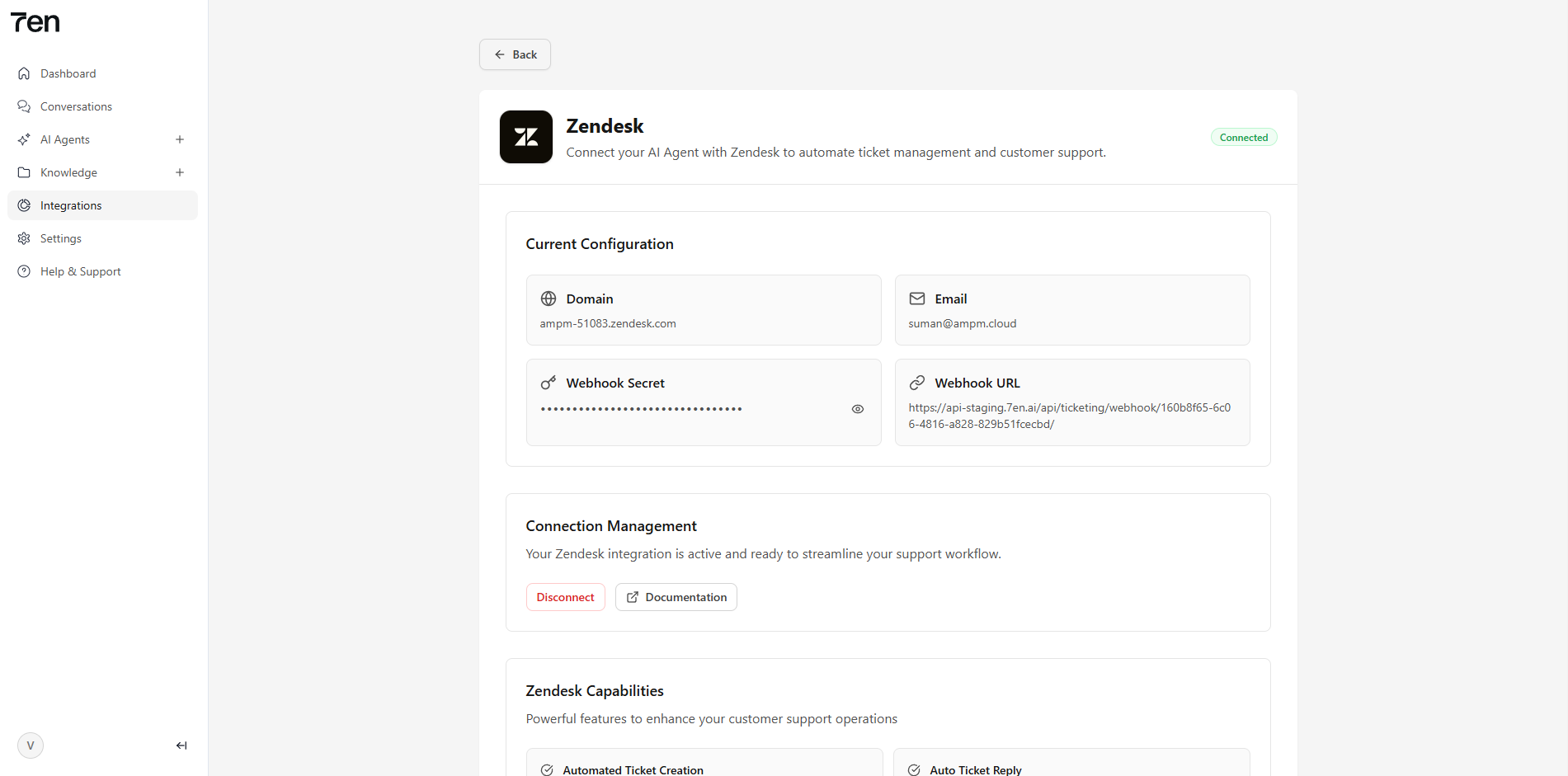
  2. Confirm the connection status, which should display Zendesk Connected upon success.
Screenshot of successful Zendesk connection in 7en.ai
Confirming the Zendesk integration

Best Practices

  • Secure Tokens: Keep your Zendesk API token confidential and avoid sharing it publicly.
  • Test Integration: Create a test ticket via your 7en.ai agent to verify the connection.
  • Monitor Activity: Use the 7en.ai Conversations page to track ticket-related interactions.
  • Check Permissions: Ensure your Zendesk account has API access enabled for seamless integration.

Troubleshooting and Support

If you face issues during setup:

  • Verify Token: Ensure the API token is valid and not revoked.
  • Check Domain: Confirm the Zendesk domain is correct (e.g., yourcompany.zendesk.com).
  • Review Errors: Check 7en.ai’s integration logs for detailed error messages.
  • Get Help:
    • Documentation: Visit /docs/integrations for guides.
    • Support Tickets: Submit a ticket via the 7en.ai dashboard.
    • Community: Join the 7en.ai Discord for peer support.
    • Tutorials: Explore video tutorials in the 7en.ai learning hub.

Next Steps

  1. Test your Zendesk integration →
  2. Configure agent ticketing settings →
  3. Monitor ticket interactions →

Ready to transform your business?

Start building intelligent AI agents to engage with customers.

← Zapier
Zoho →

On this page

  • Introduction to Zendesk Integration
  • Why Integrate Zendesk?
  • Step-by-Step Connection Guide
  • Best Practices
  • Troubleshooting and Support