7en.ai

Navigation

Getting Started

IntroductionQuick Start Guide

BUILD AGENT

Basic SettingsModel SettingsAppearanceGuidelinesEscalationChat Integration

Agent Training

Using DocumentsUsing Google DriveUsing Plain TextUsing URLs

Manage Knowledge

Knowledge FolderManage Sources

integrations

FreshdeskSlackZapierZendeskZoho

Getting Started

IntroductionQuick Start Guide

BUILD AGENT

Basic SettingsModel SettingsAppearanceGuidelinesEscalationChat Integration

Agent Training

Using DocumentsUsing Google DriveUsing Plain TextUsing URLs

Manage Knowledge

Knowledge FolderManage Sources

integrations

FreshdeskSlackZapierZendeskZoho
Home / Docs / Integrations / Zoho
7en ai x Zoho

Introduction to Zoho Desk Integration

Integrating Zoho Desk with 7en.ai enables your AI agents to streamline customer support by automating ticket creation, managing queries, and syncing data with your helpdesk system. This guide provides a concise, step-by-step process to connect Zoho Desk to 7en.ai, ensuring a seamless setup for enhanced support workflows.

Before You Begin

Ensure you have active 7en.ai and Zoho Desk accounts with administrative access. You’ll need your 7en.ai API token from Settings > API Keys in the 7en.ai dashboard. Be aware of rate limits: 10 requests/min for authentication endpoints and 60 requests/min for team management endpoints.

Why Integrate Zoho Desk?

Connecting Zoho Desk with 7en.ai empowers your AI agents to:

  • Automate Support: Create and update tickets directly from agent interactions.
  • Centralize Queries: Manage customer inquiries within a unified platform.
  • Boost Productivity: Reduce manual tasks by syncing agent responses with Zoho Desk.

This integration transforms your AI agents into a powerful extension of your customer support operations.

Step-by-Step Connection Guide

Follow these quick steps to connect Zoho Desk to 7en.ai, with visual aids to simplify the process.
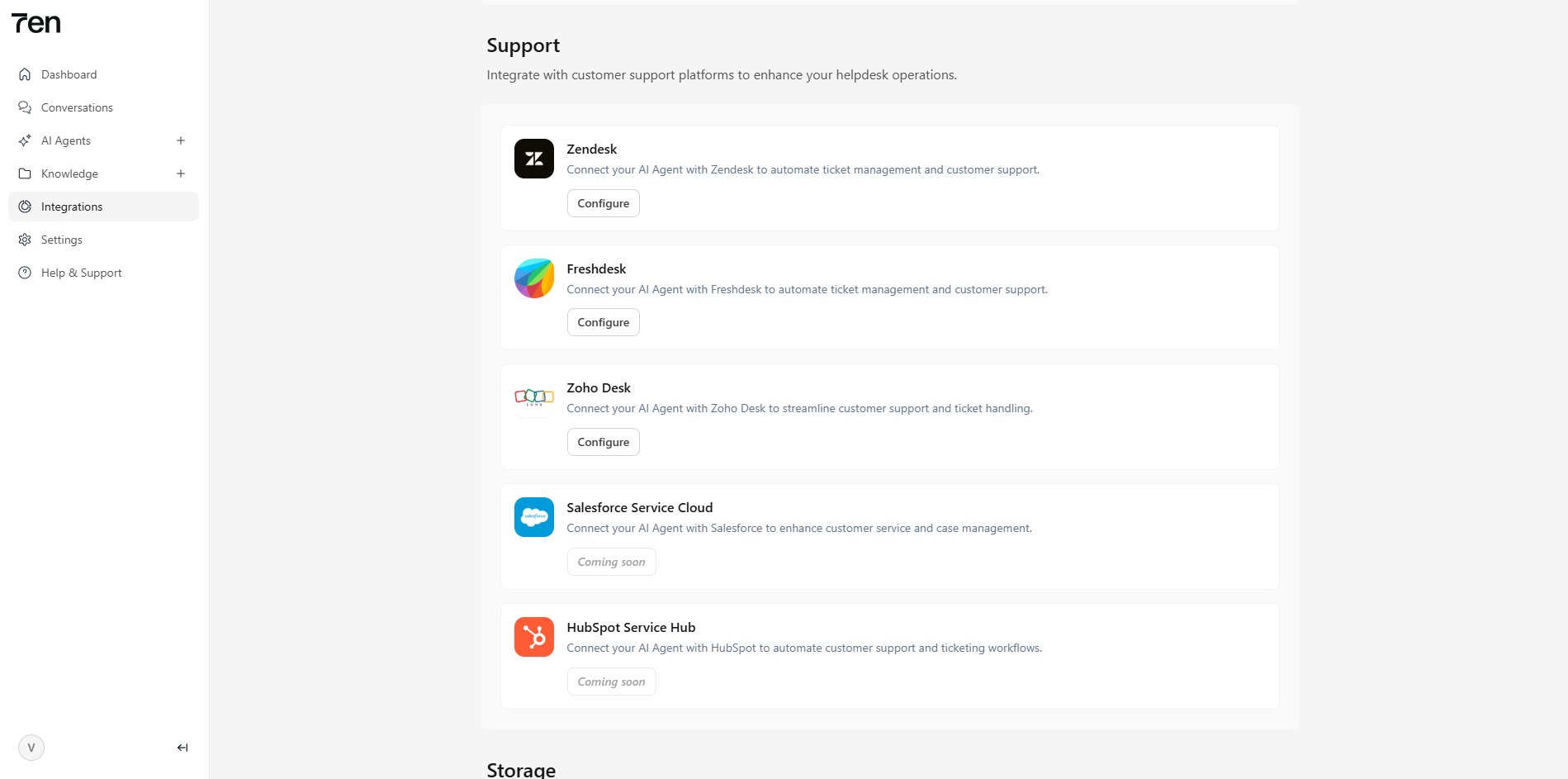
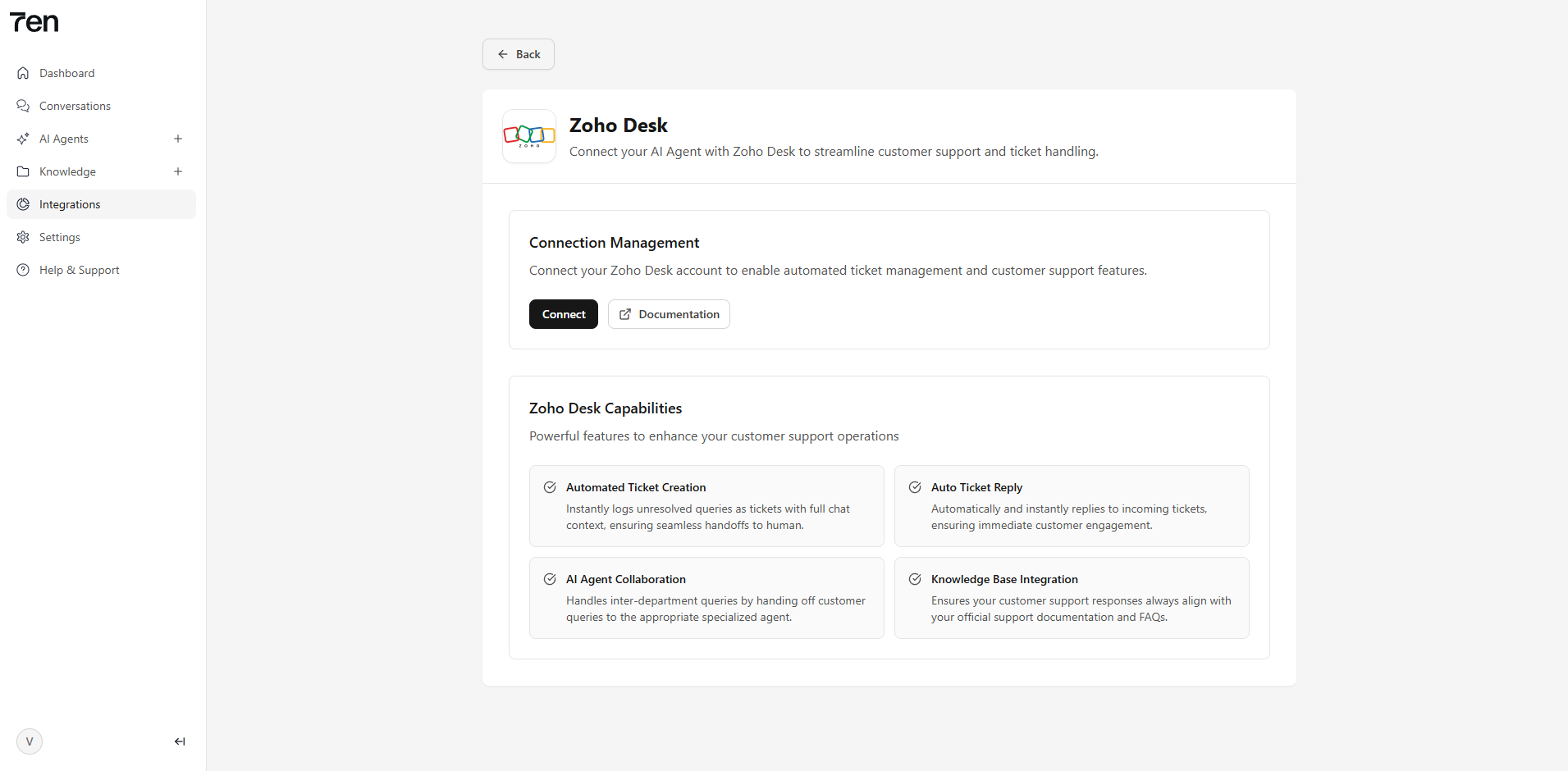
Step 1: Navigate to Integrations

  1. Log in to your 7en.ai account.
  2. Go to the Integrations page at https://staging.7en.ai/integrations.
  3. Locate the Zoho Desk integration and click Configure Integration.
Screenshot of 7en.ai Integrations page with Zoho Desk option
Selecting Zoho Desk integration in 7en.ai

Step 2: Initiate Zoho Desk Connection

  1. Click Connect Zoho Desk on the integration configuration page.
Screenshot of Zoho Desk integration page with Connect button
Initiating the Zoho Desk connection

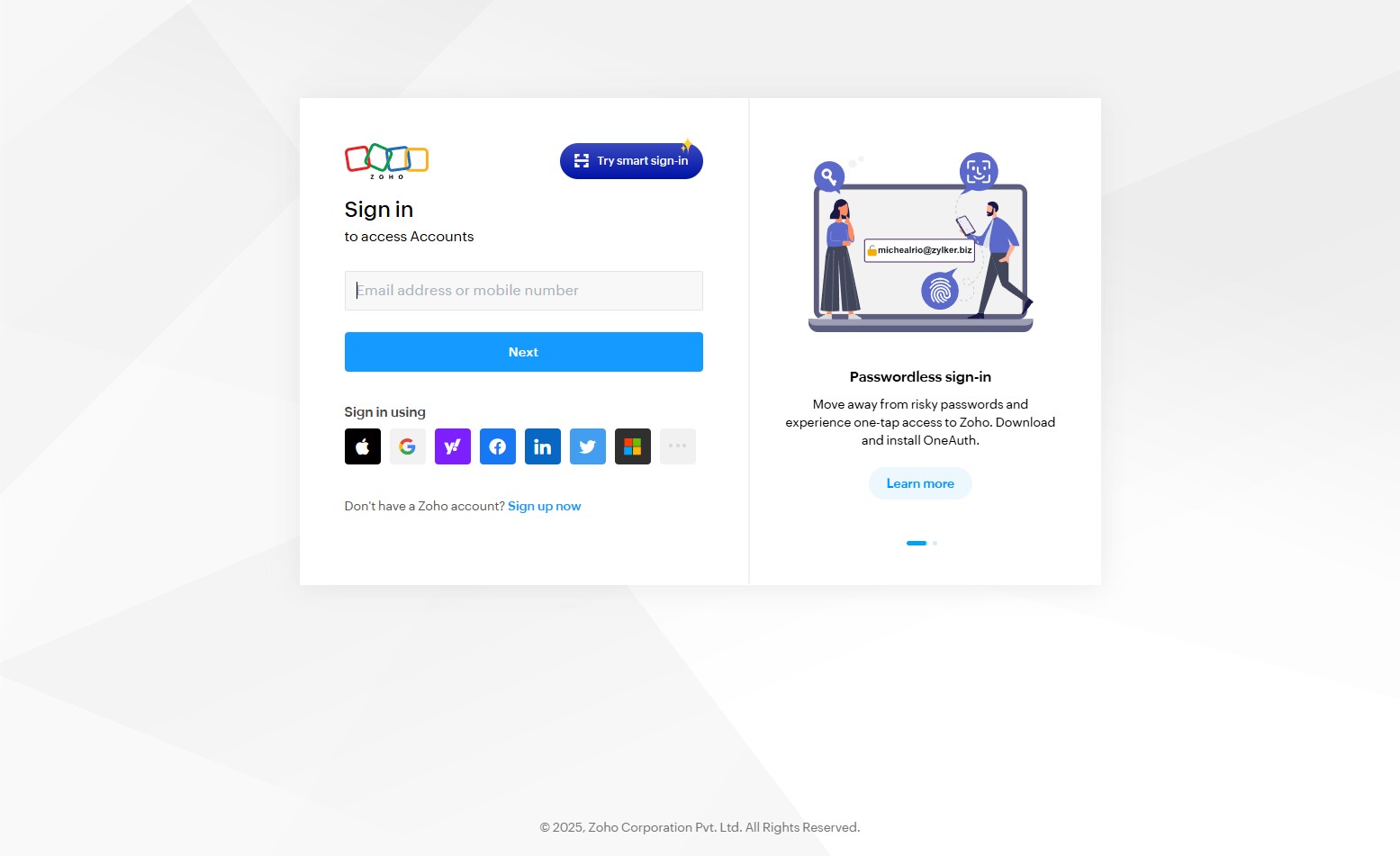
Step 3: Sign In to Zoho

  1. You’ll be redirected to the Zoho login page.
  2. Sign in with your Zoho Desk account credentials.
Screenshot of Zoho login page
Signing in to your Zoho account

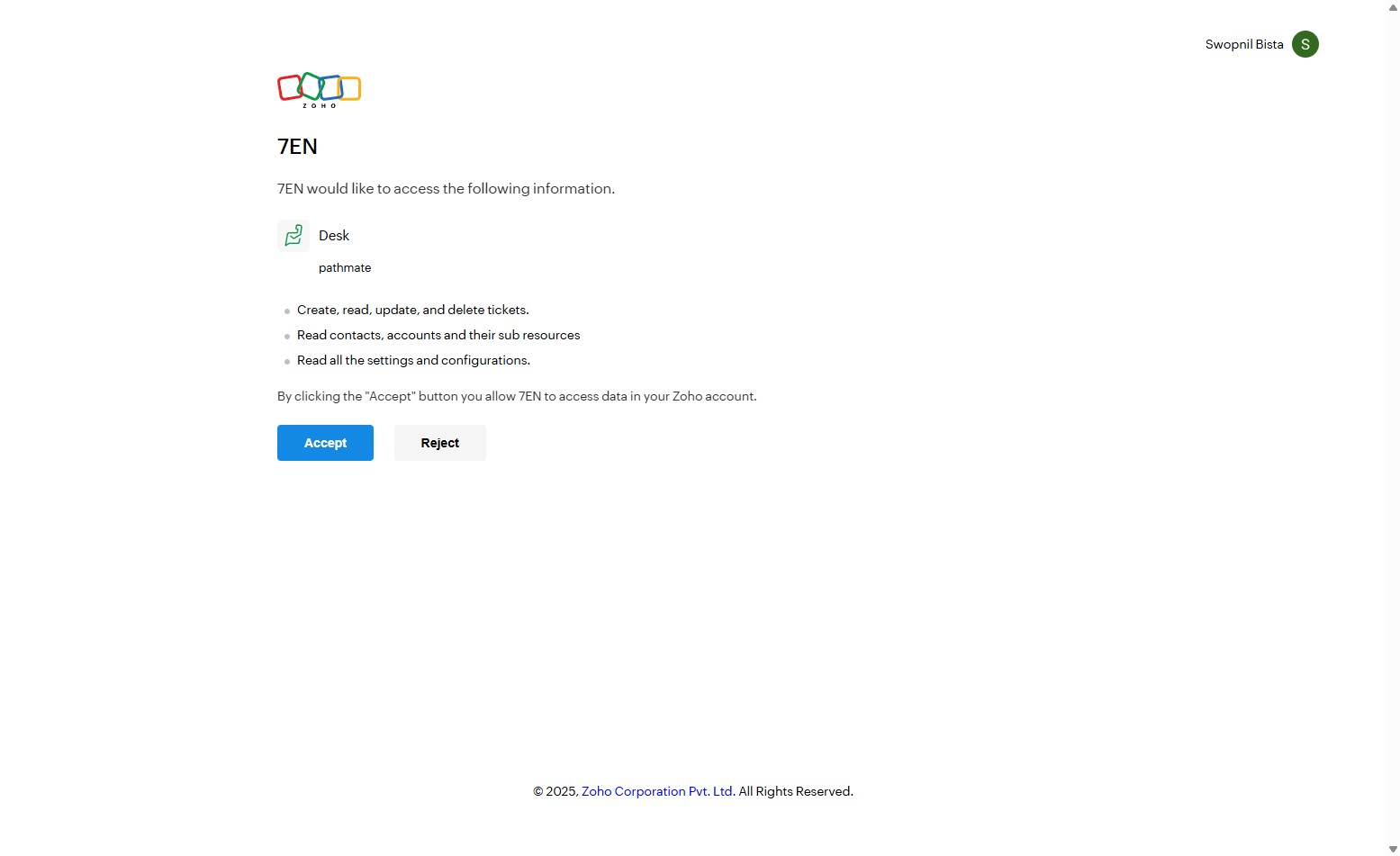
Step 4: Authorize the Connection

  1. Review the permissions requested by 7en.ai.
  2. Click Accept to authorize the connection.
Screenshot of Zoho authorization page
Authorizing 7en.ai to connect with Zoho Desk

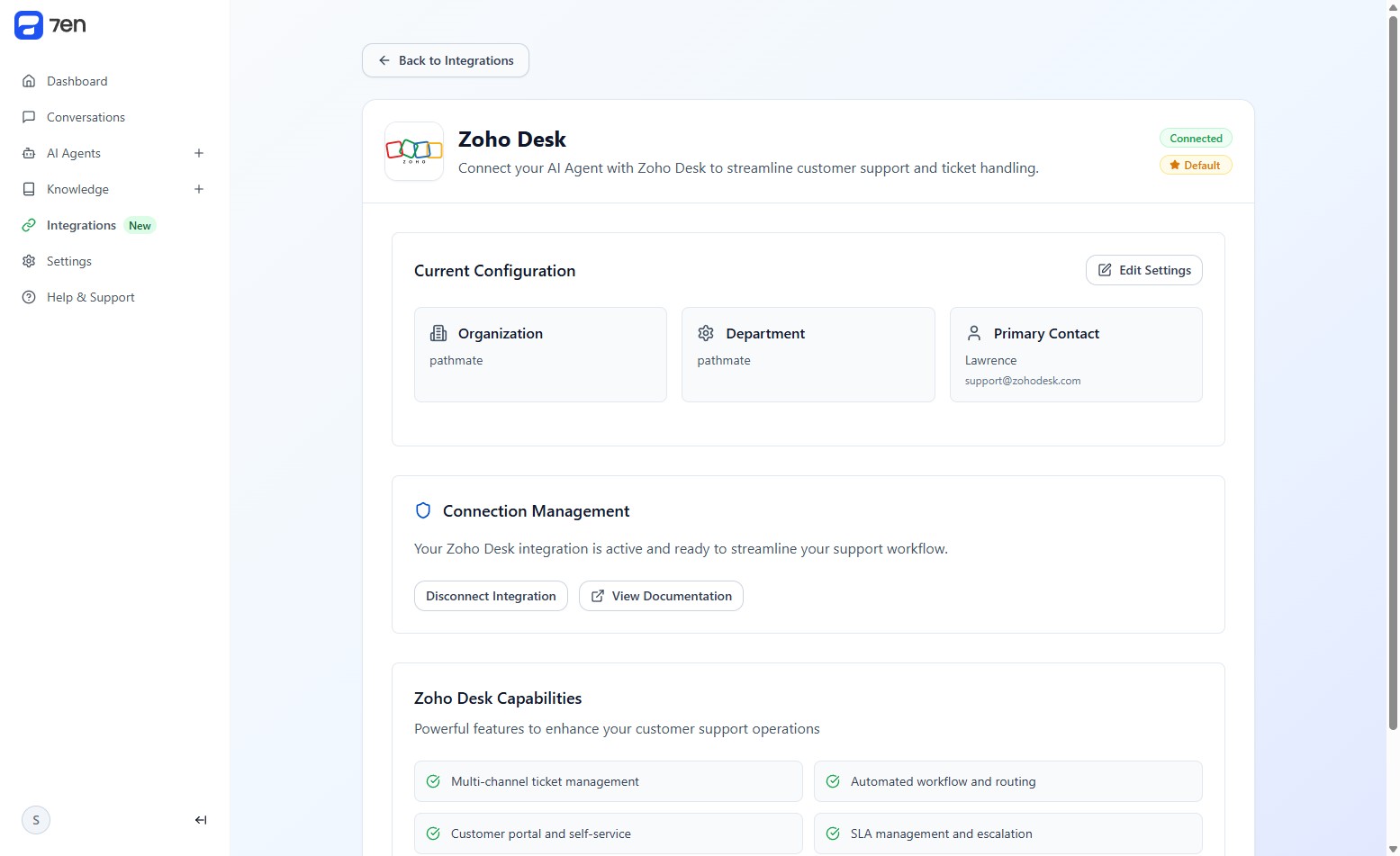
Step 5: Verify Connection

  1. Return to the 7en.ai integrations page.
  2. Confirm the connection status, which should display Zoho Desk Has Been Connected.
Screenshot of successful Zoho Desk connection in 7en.ai
Confirming the Zoho Desk integration

Best Practices

  • Check Permissions: Ensure your Zoho Desk account has the necessary permissions to allow API access.
  • Test Integration: Create a test ticket via your 7en.ai agent to verify the connection works as expected.
  • Monitor Interactions: Use the 7en.ai Conversations page to track ticket-related activities.
  • Keep Credentials Secure: Avoid sharing your Zoho login details publicly.

Troubleshooting and Support

If you encounter issues during setup:

  • Login Errors: Verify your Zoho credentials and ensure you’re using an admin account.
  • Connection Failures: Check your internet connection and try re-authorizing.
  • Review Logs: Inspect 7en.ai’s integration logs for error details.
  • Get Support:
    • Documentation: Explore /docs/integrations for detailed guides.
    • Support Tickets: Submit a ticket via the 7en.ai dashboard.
    • Community: Join the 7en.ai Discord for peer assistance.
    • Tutorials: Watch integration-focused videos in the 7en.ai learning hub.

Next Steps

  1. Test your Zoho Desk integration →
  2. Configure agent ticketing settings →
  3. Monitor ticket interactions →

Ready to transform your business?

Start building intelligent AI agents to engage with customers.

← Zendesk

On this page

  • Introduction to Zoho Desk Integration
  • Why Integrate Zoho Desk?
  • Step-by-Step Connection Guide
  • Best Practices
  • Troubleshooting and Support