7en provides a seamless way to embed your intelligent AI agent directly into your Slack workspace. By integrating 7en, you unlock the full potential of your custom knowledge base right within your team's daily communication channel.
In just a few minutes, you can deploy a 7en agent across your company’s Slack channels. This empowers your employees to get instant answers, resolve technical issues, and access critical information without ever leaving the chat window—supercharging your workspace with round-the-clock automated support.
Integrating your 7en agent with Slack transforms it from a website widget into a powerful internal team member. Here is why you should enable this channel:
Access Your Custom Knowledge Base Instantly: Your Slack bot isn't just a generic AI; it accesses the specific URLs, PDFs, and documents you trained it on in 7en. Whether it's an employee handbook, technical documentation, or sales scripts, your team can query this proprietary data directly inside Slack without searching through drive folders or wikis.
Stop Context Switching: Employees lose time constantly switching tabs to find answers. With 7en, the answer is just a Direct Message or an @mention away. By bringing the knowledge source to where the conversation happens, you streamline workflows and keep your team focused.
Automate Internal Helpdesk Support: Turn your 7en agent into an always-on IT or HR assistant. Instead of human agents answering the same "How do I reset my password?" or "What is the holiday policy?" questions repeatedly, your Slack bot handles these routine queries instantly, freeing up your team to focus on complex tasks.
Follow these quick steps to connect Slack to 7en.ai, with visual aids to simplify the process.
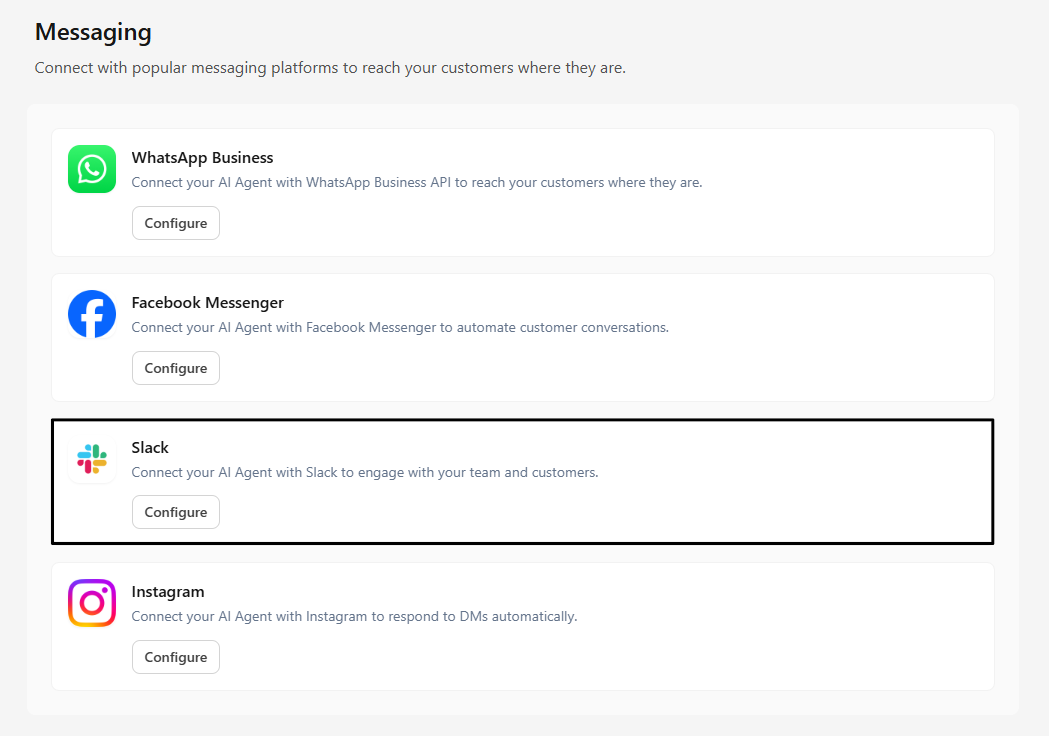
You must have a Slack app to get the required details for configuration. Don't have Slack app? Learn to create
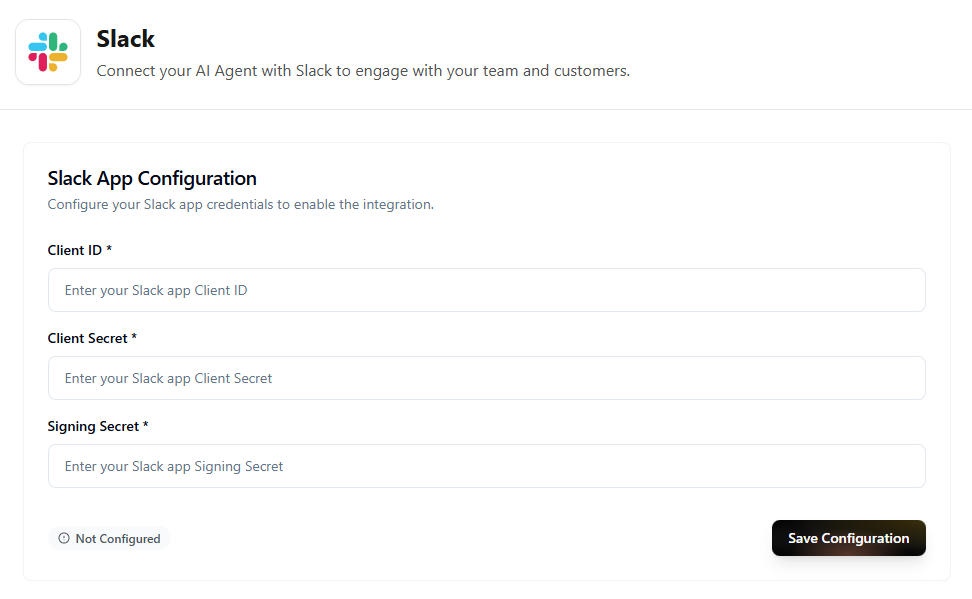
After configuration, click Connect to Slack button to connect with your Slack Workspace.
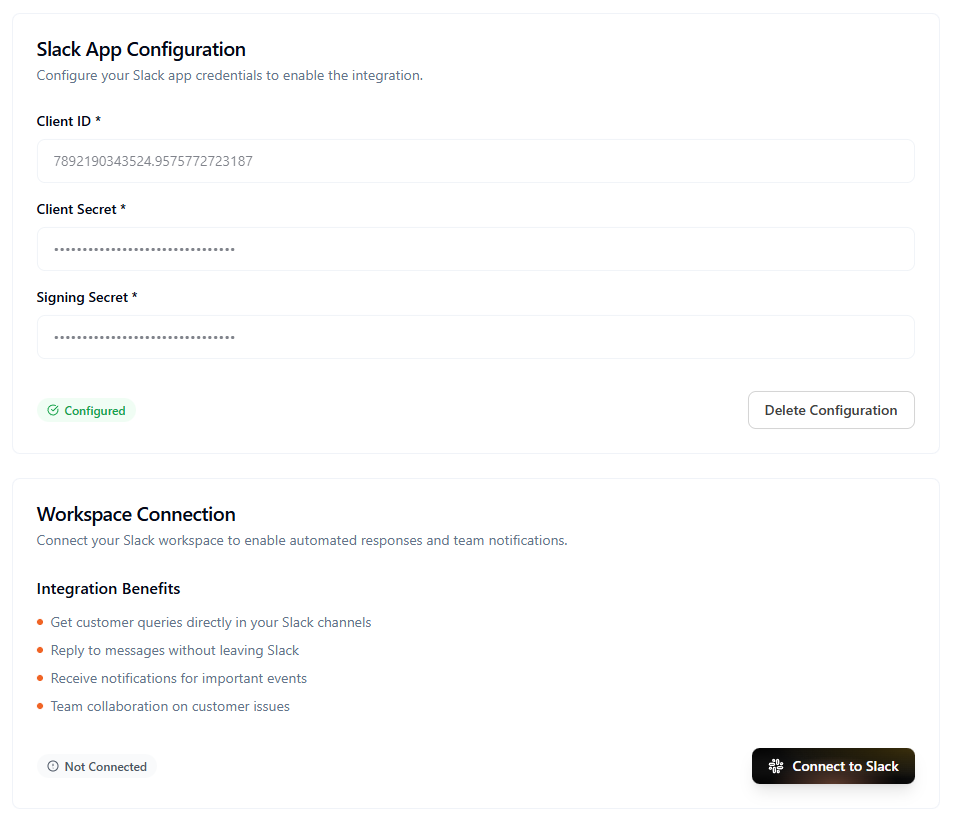
Review the permissions requested by 7en.ai and click Allow button.
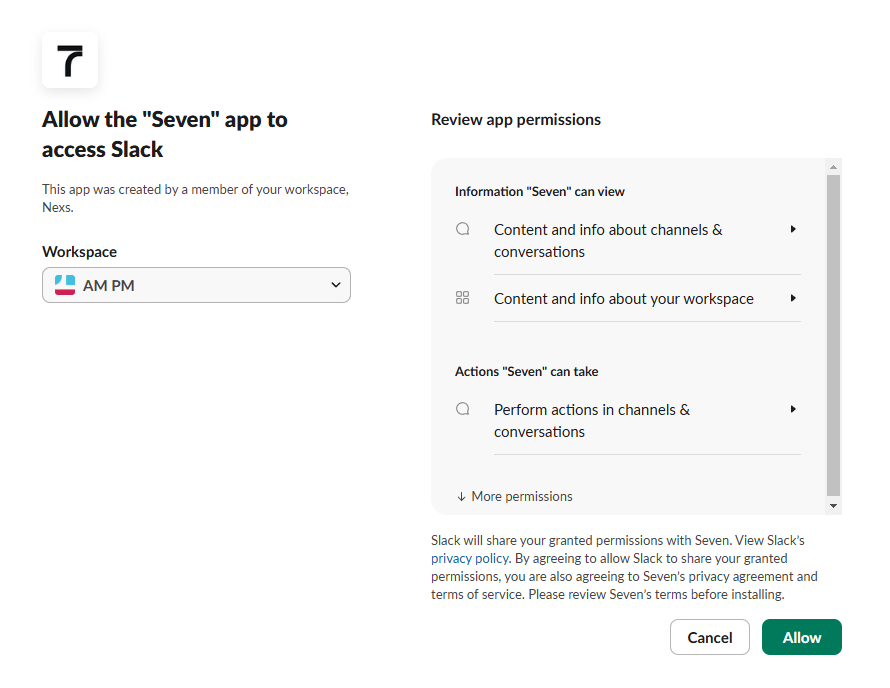
Navigate to api.slack.com/apps and sign in.
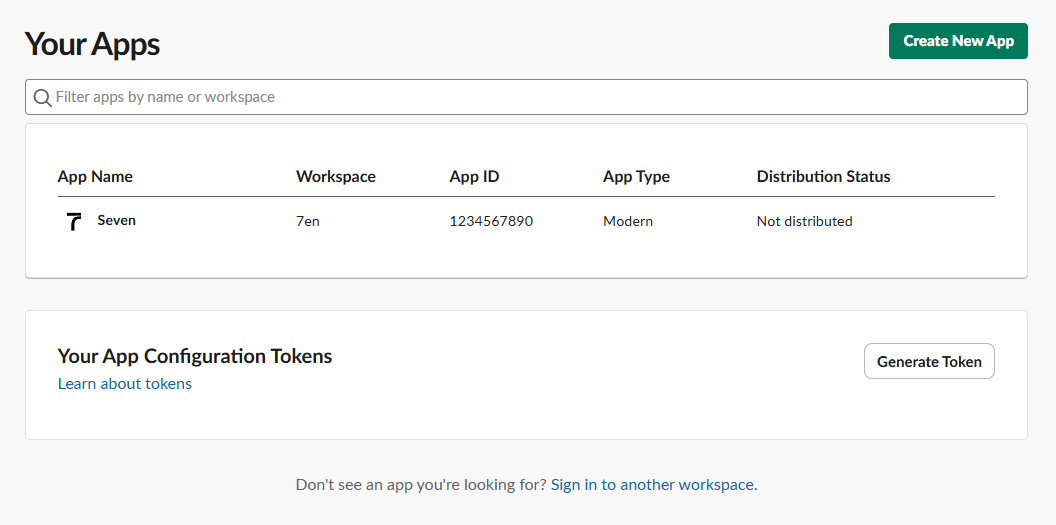
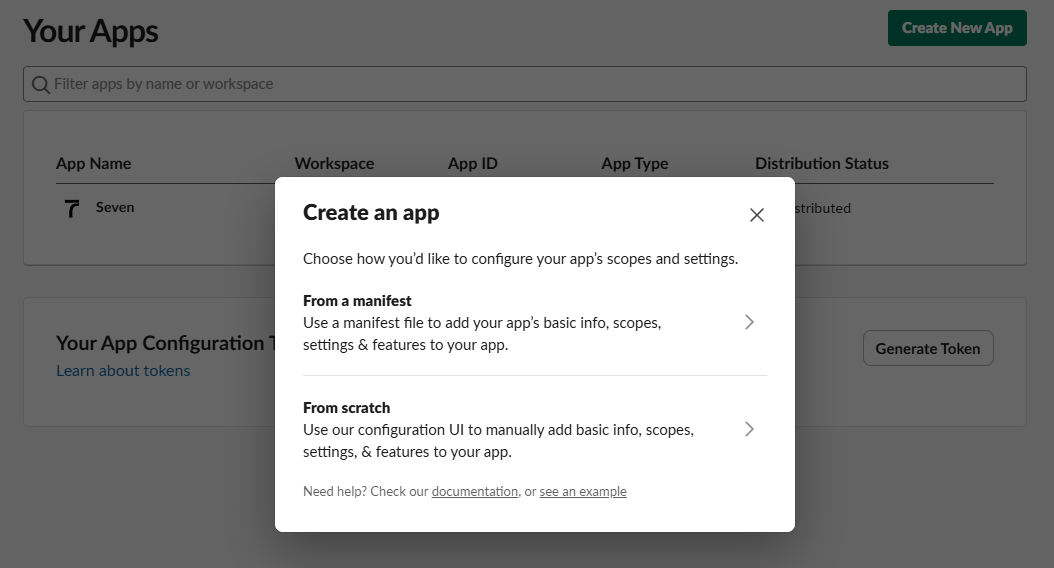
Click Create New App and select From scratch.
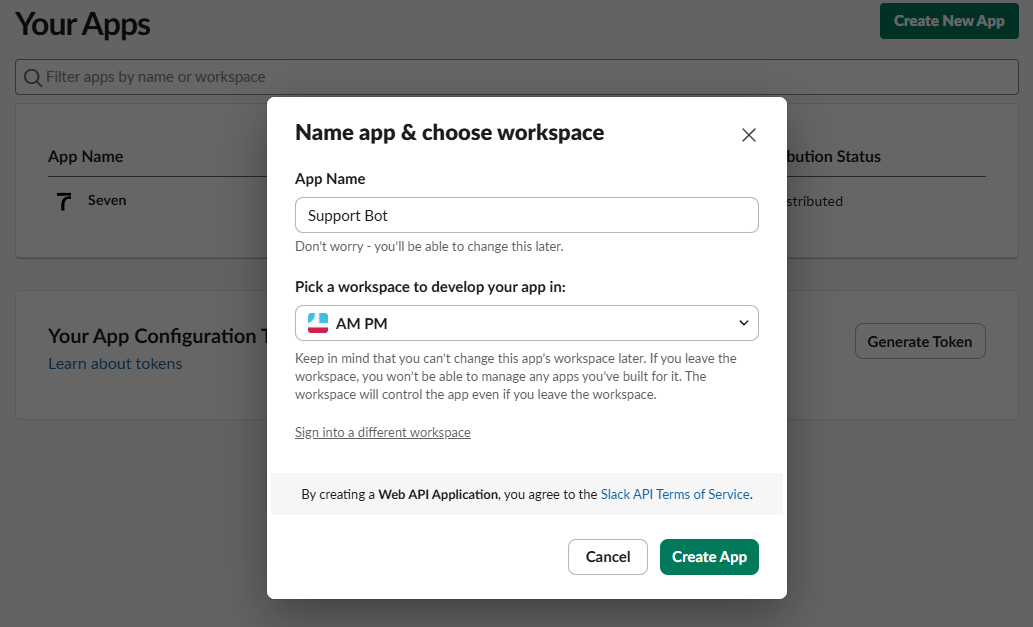
Enter your App Name (e.g., Support Bot), select your Workspace and click Create App button.
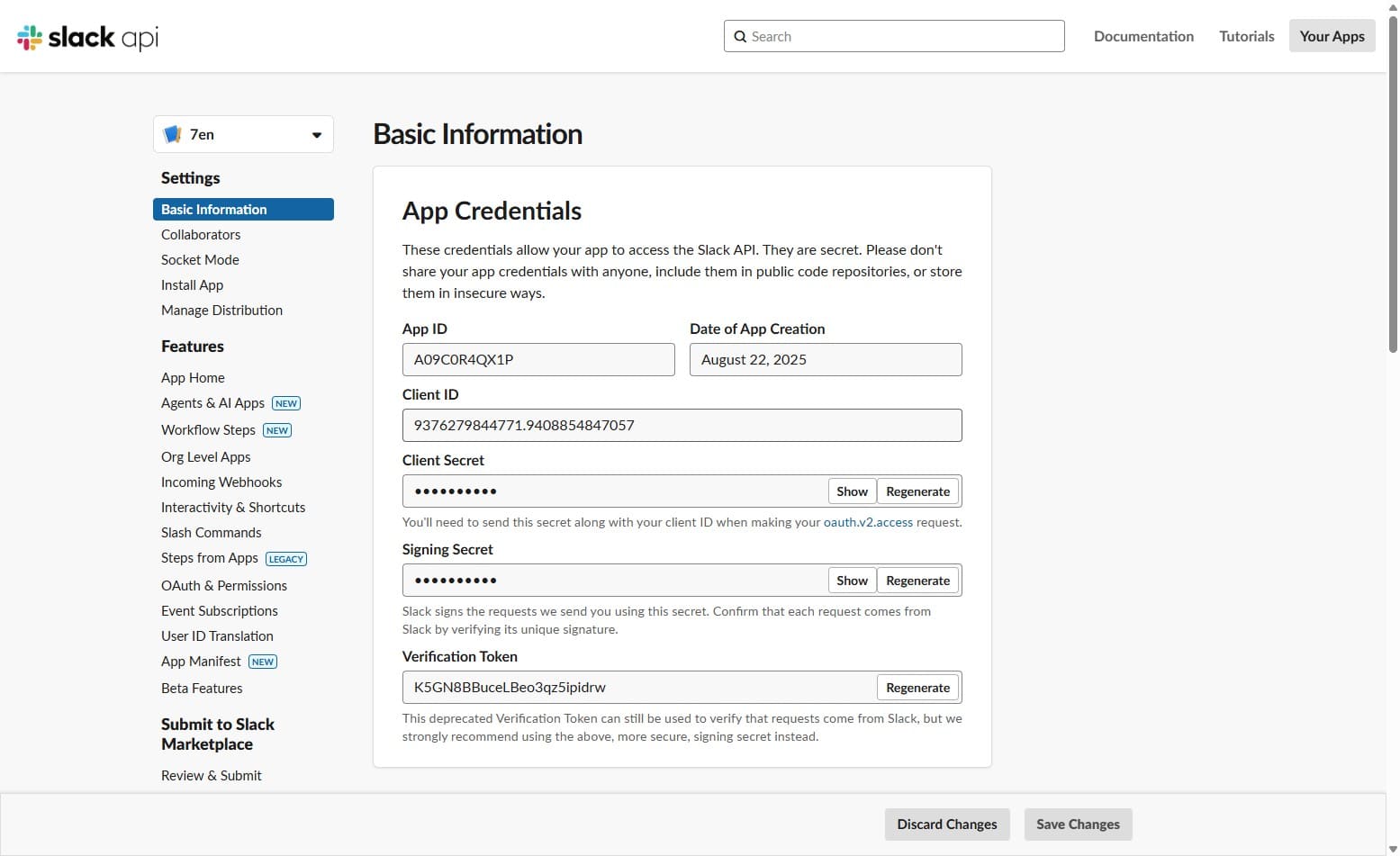
Generate App credentials. Copy and paste required credentials to 7en.
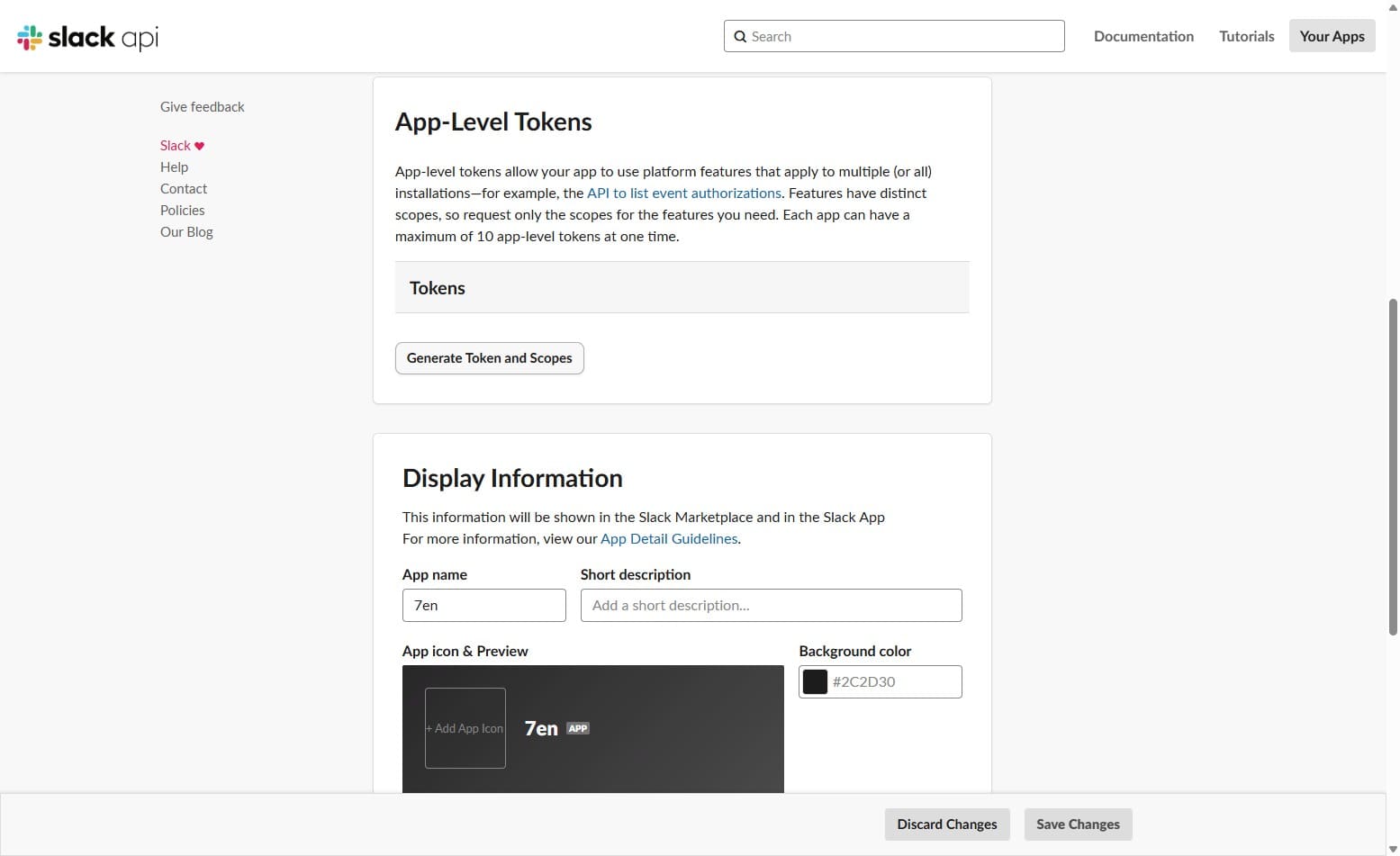
Scroll Down and Click Generate Token and Scopes.
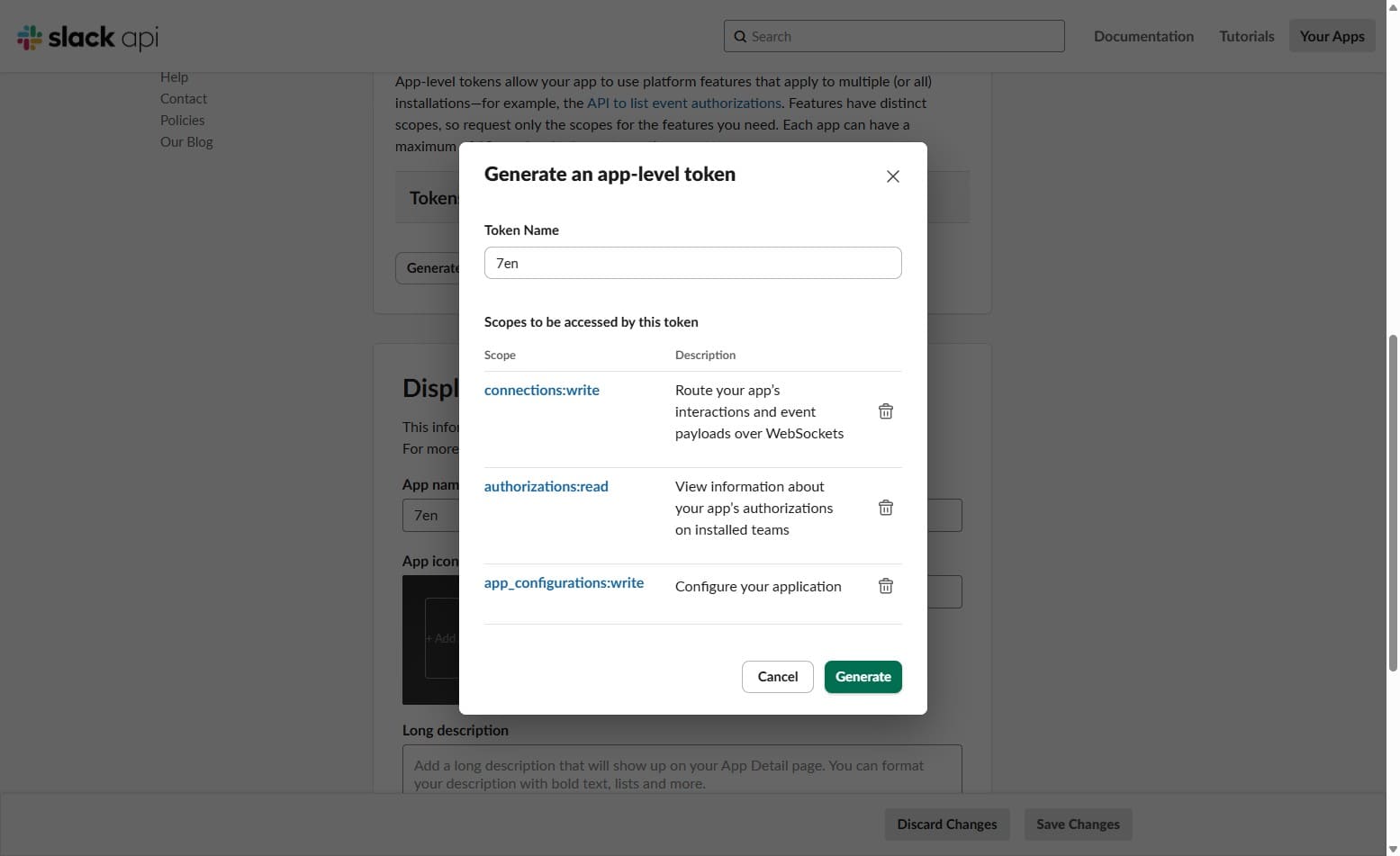
Enter Token name and add Scopes: connections:write, authorizations:read , app_configurations:write to generate a token.
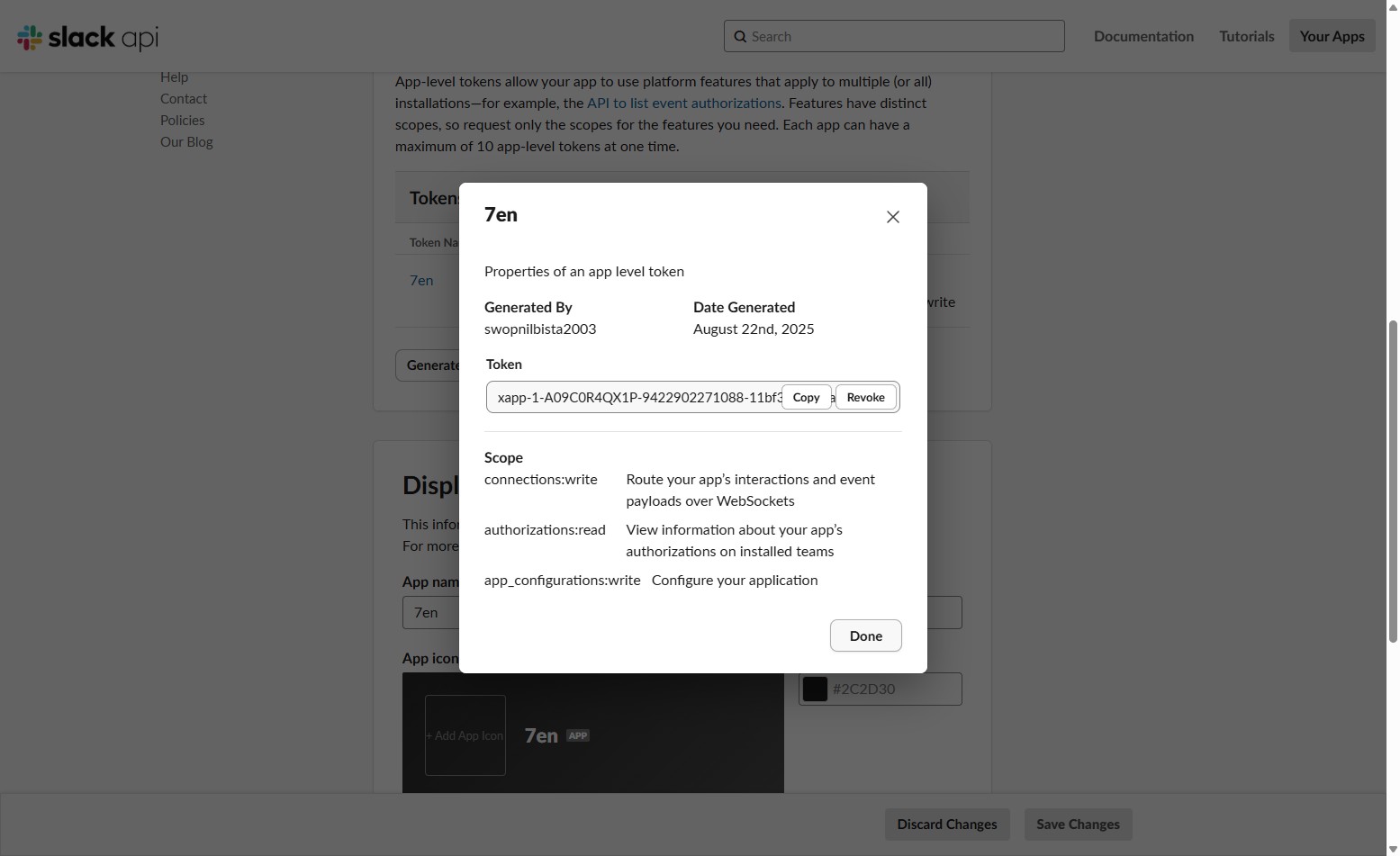
A token is generated. Use this token to App token field in 7en.
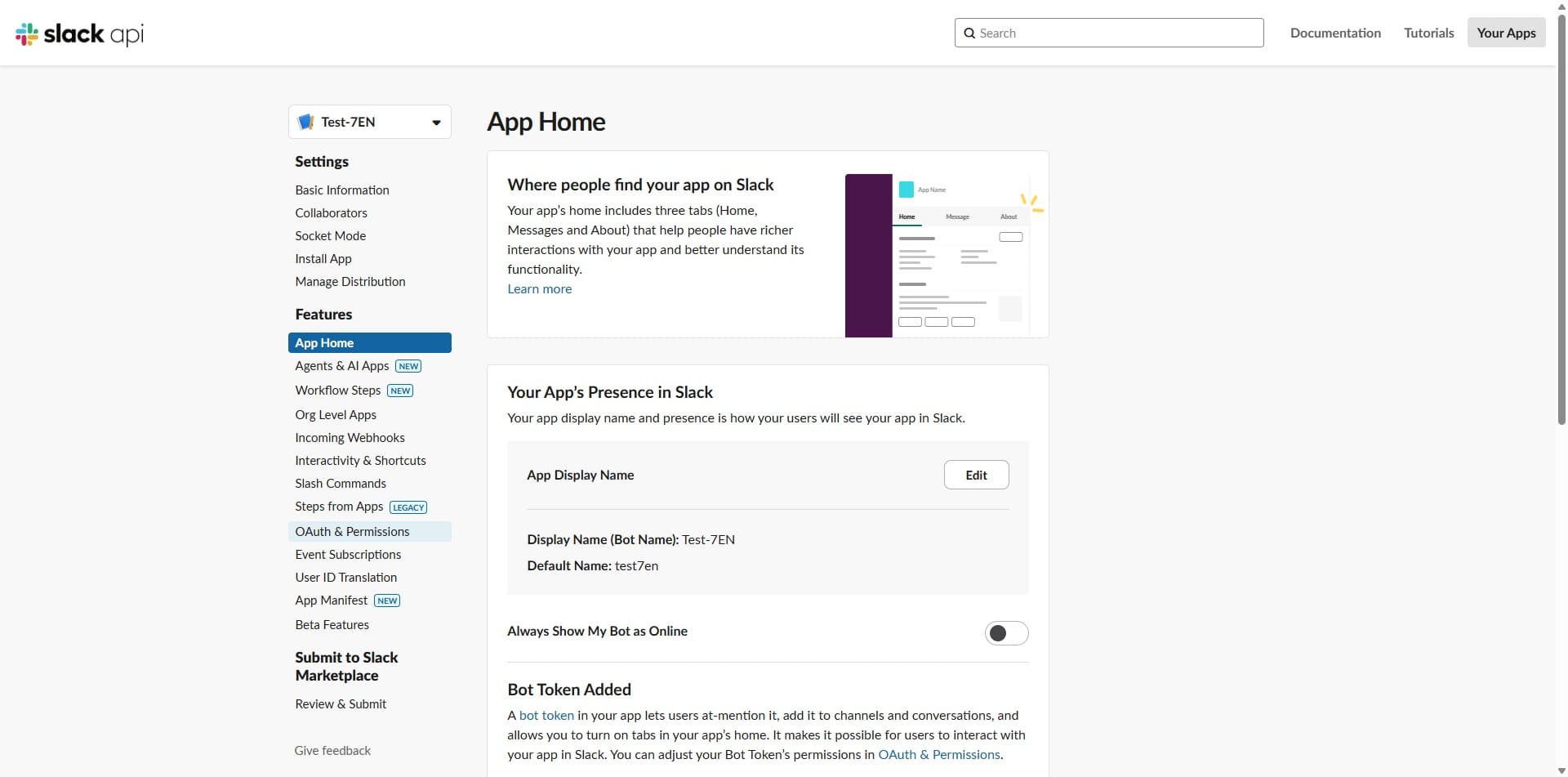
Navigate to OAuth & Permissions page from side menu.
Add redirect url https://app.7en.ai/api/slack/oauth/callback/
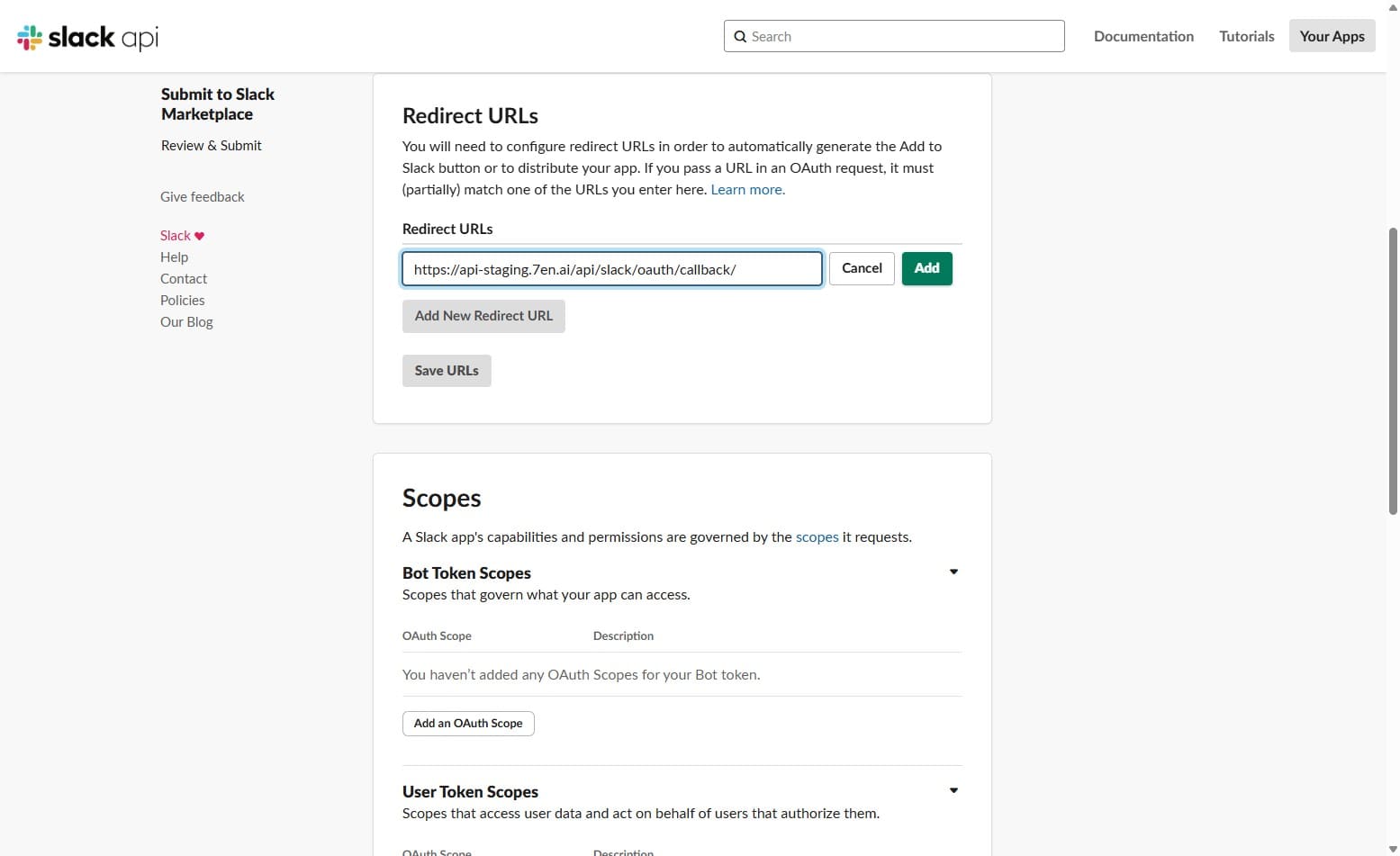
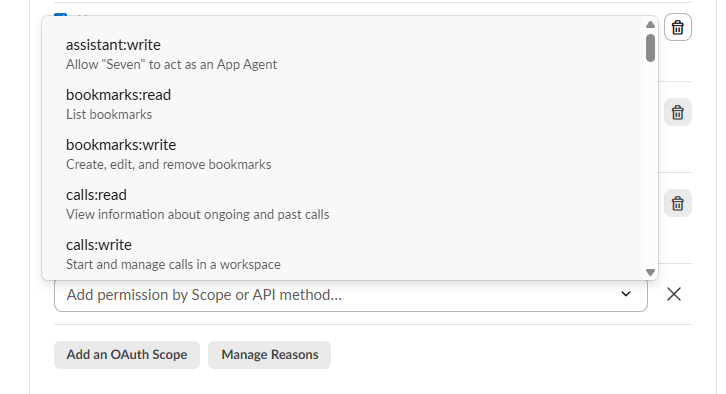
Scroll down to Scopes section and add following Bot Token Scopes:
app_mentoins:read, channels:history, channels:read, chat:write, groups:history, groups:write, im:history, im:write, mpim:history, mpim:read
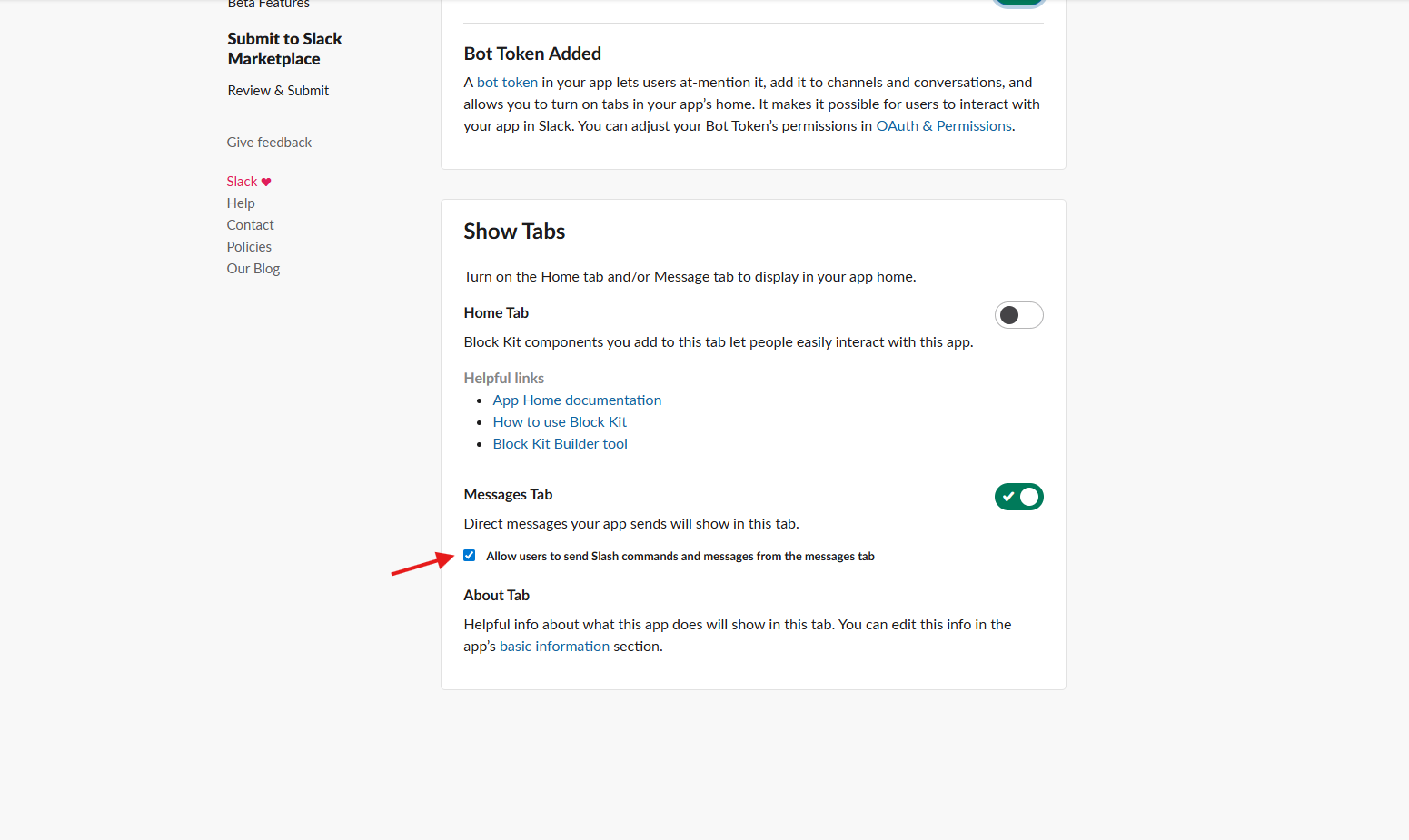
Navigate to App Home page from side menu and scroll down to Show Tabs section. Enable Allow users to send Slash commands and messages from the messages tab.
Navigate to Event Subscriptions page from side menu and turn on the Enable Events option.
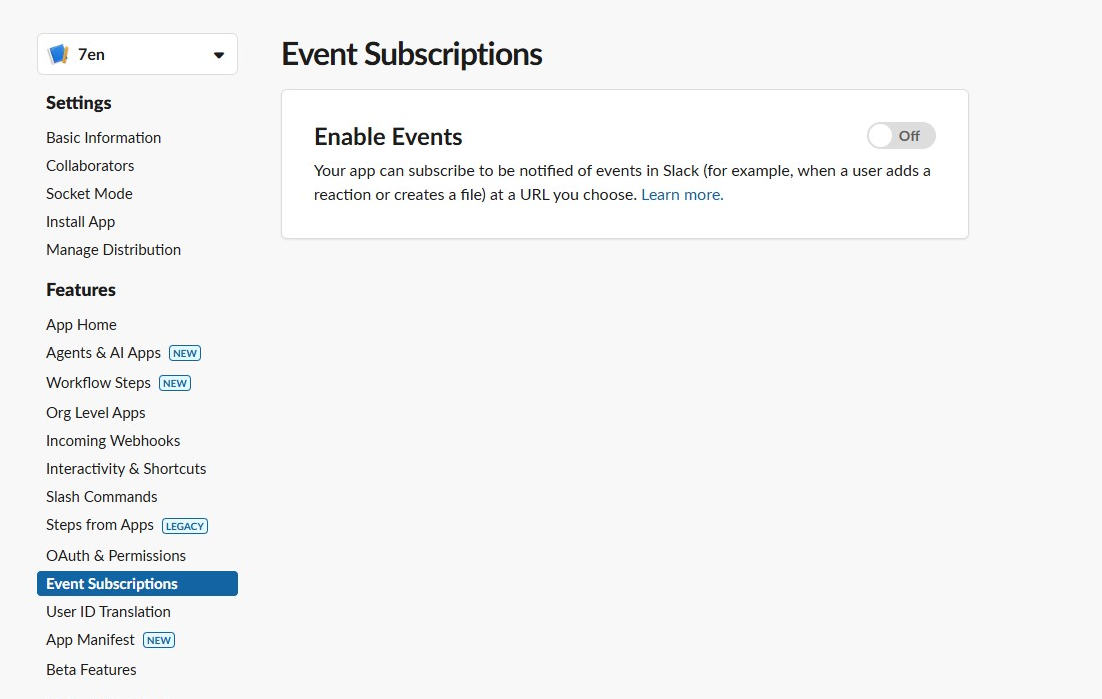
Add request url https://api-staging.7en.ai/api/slack/webhook/
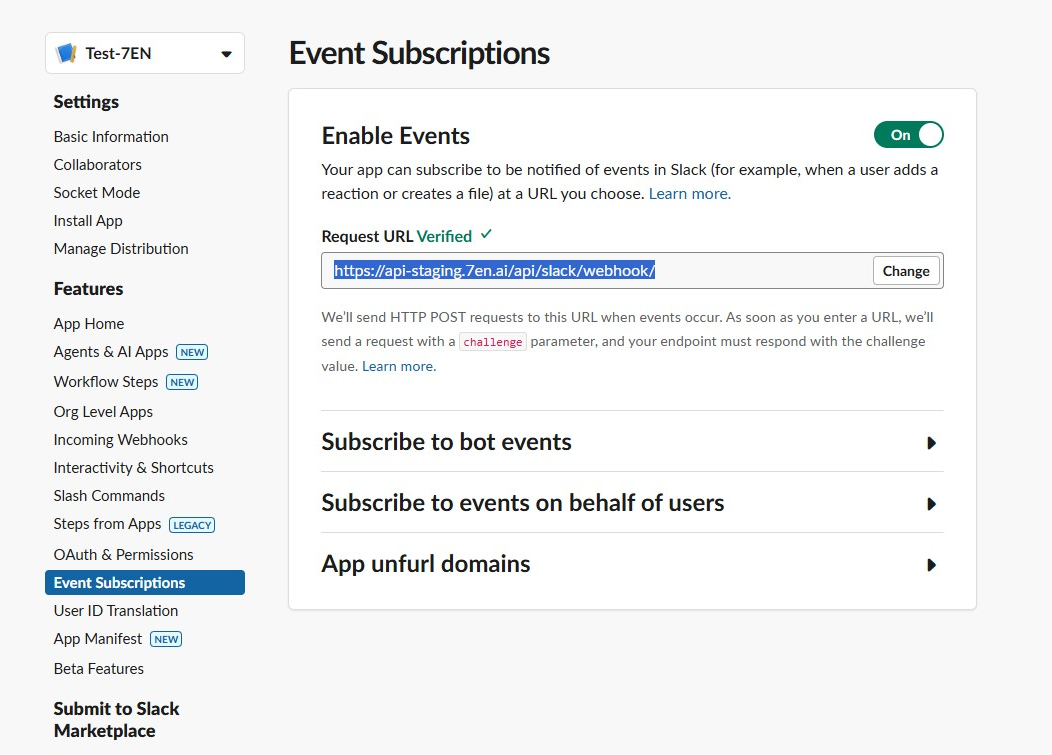
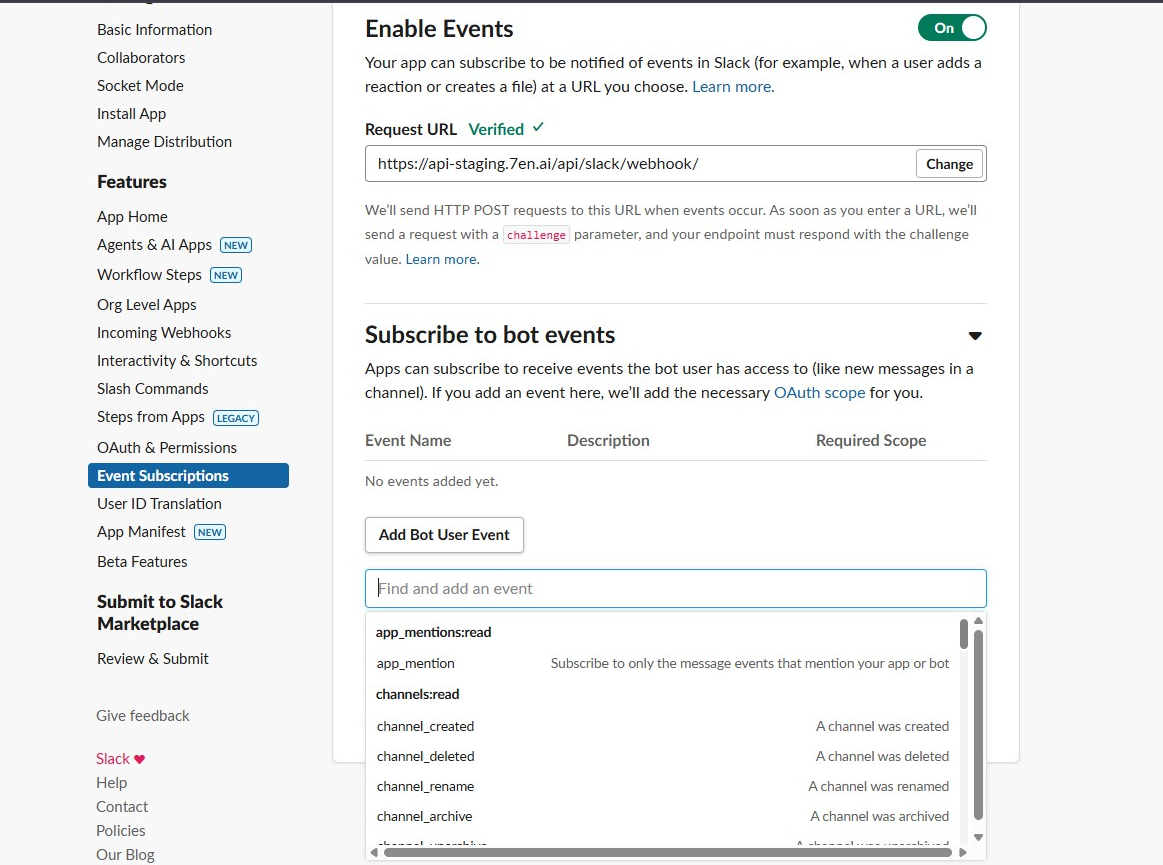
Expand Subscribe to bot events and add following Bot User Events:
member_joined_channel, message.channels, message.groups, message.im, app_mention, message.mpim,
Please don't forget to click Save Changes after making changes.
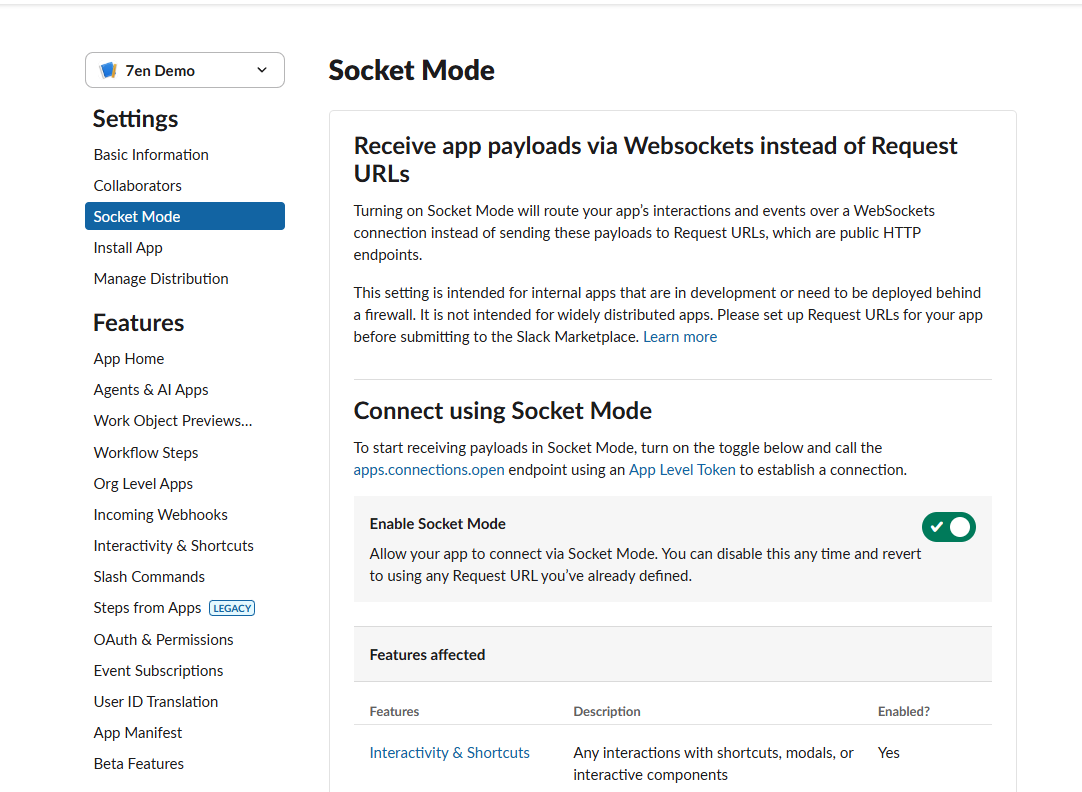
Navigate to Socket Mode page from side menu and turn on the Enable Socket Mode option.
Start building intelligent AI agents to engage with customers.