7en.ai

Navigation

Getting Started

IntroductionQuick Start Guide

BUILD AGENT

Basic SettingsModel SettingsAppearanceGuidelinesEscalationChat Integration

Agent Training

Using DocumentsUsing Google DriveUsing Plain TextUsing URLs

Manage Knowledge

Knowledge FolderManage Sources

integrations

FreshdeskSlackZapierZendeskZoho

Getting Started

IntroductionQuick Start Guide

BUILD AGENT

Basic SettingsModel SettingsAppearanceGuidelinesEscalationChat Integration

Agent Training

Using DocumentsUsing Google DriveUsing Plain TextUsing URLs

Manage Knowledge

Knowledge FolderManage Sources

integrations

FreshdeskSlackZapierZendeskZoho

Training agent using Documents

Interactive demo showing agent training using documents

The "Documents" tab within the "Add Knowledge Sources" modal allows you to train your AI agent using static files such as PDFs or text documents. This method is ideal for ingesting internal company policies, product manuals, or legacy data that resides offline rather than on a public website.

Input Configuration

Source Name
Assign a unique name to this collection of files (e.g., "Employee Handbook") so you can easily identify it in your knowledge base later.

File Upload
You have two methods to upload your documents

  • Drag & Drop: Simply drag files from your computer and drop them into the dashed upload zone.
  • Browse: Click the Choose Files button to open your system's file picker and select documents manually.

Please be informed that only PDF, TXT, XLSX and DOCX type are allowed to upload.

File Management

Before finalizing the source, you can review and manage the uploaded content:

  • Selected Files List: Verify the files you have staged for upload. The list displays the filename (e.g., test-file.pdf) and the specific file size.
  • Size Constraints: Pay attention to the max upload size limit per upload indicator (e.g., / 10 MB) to ensure your document does not exceed the maximum allowed upload size.
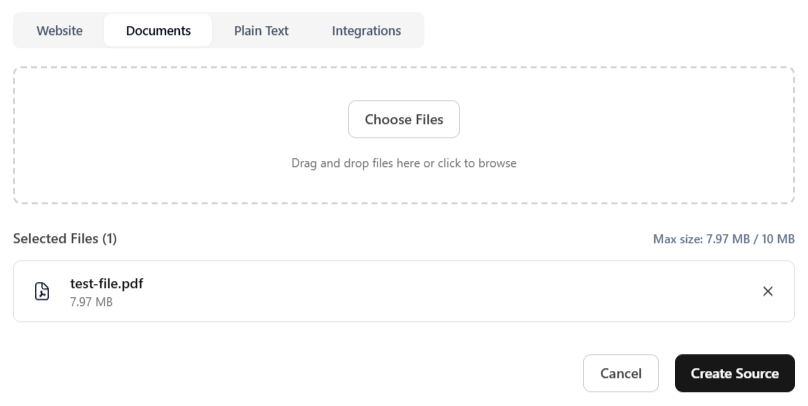
  • Remove Files: If you accidentally select the wrong file, click the X icon on the right side of the file row to discard it.
Upload documents

Train the agent

Once you have completed the steps mentioned above, click the Create Source button at the bottom right of the modal to save the entry.

Important: Simply creating a source does not immediately train the agent. After adding all your desired sources (websites, documents, or text), you must click the Train Agent button on the builder page. This triggers the system to process the new data and apply it to your agent's active knowledge base.

Ready to transform your business?

Start building intelligent AI agents to engage with customers.

← Chat Integration
Using Google Drive →

On this page

  • Training agent using Documents
  • Input Configuration
  • File Management
  • Train the agent